Getting started
Install TerrainForge, start a Terrain Definition from a preset, preview it, build a take and import it as a World Partition landscape.
From nothing installed to a landscape in a new map. The Automation Forge getting started covers the hub and the account; this page starts after that.
Install through the hub
In the hub's Plugins tab, pick TerrainForge and press Add & install. The open toolset installs in the same click. TerrainForge itself is a paid plugin and is named until it is on your account; while it is in preview, its checkout costs nothing.
forge install terrainforgeIn Unreal, open the Automation Forge toolbar menu, tick TerrainForge under Installed (and TerrainForgeToolset if an agent will drive it), and restart the editor. Edit → Plugins works too.
Create a Terrain Definition from a preset
In the Content Browser: Add → Automation Forge → TerrainForge → Terrain Definition (from preset).
The picker lists every preset with a small hillshade of its output, drawn by the native engine in the background and cached. Choose Alpine valleys (eroded) for a 4 km eroded mountain range, or any of the classic ones, and press Create. The asset opens in the TerrainForge editor.
Terrain Definition, without "from preset", opens with a starter mountain graph instead.
On a definition you already have, Start from preset in the toolbar replaces the graph and world settings in one undoable step. It keeps the definition's embedded sources and clears its GIS provenance. It is disabled while a build runs.
Preview
Select a node in the Flow graph and the Terrain viewer shows it, with Live preview on. Double-clicking a node previews it too.
- The preview grid is 129, 257, 513 or 1025 samples. "Preview grid. Builds use the toolbar's resolution." A 257 × 257 preview comes first, then the size you asked for.
- Pin keeps previewing one node while you select and edit the nodes that feed it.
- In drainage water mode, the preview of the graph output also draws its lakes and rivers.
- The viewer draws at most a set number of vertices per side; it says so under the view. A full 4033 mesh needs a lot of memory, so raise it on purpose.
Previews are quick looks on a reduced grid. A build computes the take at its own resolution, so a graph that previews well at 513 is still worth checking at 2017 before a 4033 build.
Build a take
World & biomes holds the world every build uses: map size, output grid, simulation grid, lowest and highest height, seed, which map edges water may leave by, and the water mode. It shows an estimate of the build's peak memory before you start.
Press Build terrain. The resolution beside it is World settings, Native 2K · 2017² or Native 4K · 4033². Start at 2017; 4033 is several minutes on the CPU.
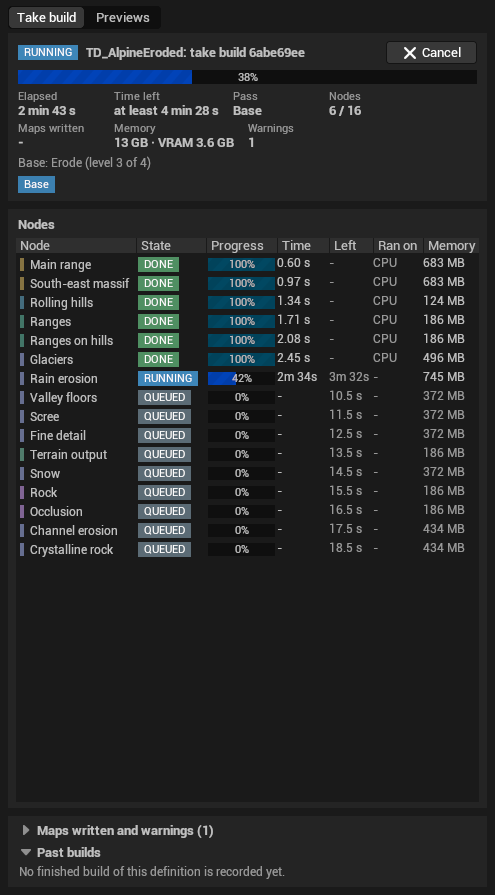
The Build monitor tab follows the build node by node and keeps the last twelve builds of each definition. Cancel stops the running build; takes that finished are kept.
The result is a new take. A changed graph or world setting marks the last take out of date; the take itself stays.
Import it as a World Partition landscape
On the Export tab, under New level, give a content path that does not
exist yet (it starts as /Game/TerrainForge/L_Terrain) and press Import as
new level.
The importer creates a new World Partition map with:
- the landscape, at the take's resolution, with one paint layer per layer of the take, their weights summing to 255;
- a landscape material that paints each layer a flat colour, for inspection;
- the take's lakes and rivers as engine water bodies, their beds already carved;
- a directional light, sky light, sky atmosphere and height fog;
- a provenance record on the landscape, tagged
TerrainForge.
It refuses, before it creates anything, when there is no current completed take, the path exists, the open map has unsaved changes, or Play In Editor is running.
Bigger takes
| Take | In the editor | Nanite |
|---|---|---|
| Up to 4033 | Yes, if the memory guard finds room | On |
| 8129 | Yes, if the memory guard finds room | Off, with a warning; enable it on the proxies afterwards |
| 16321 | No: the headless commandlet | Off |
The memory guard estimates an import's peak and refuses one that will not fit in free memory, saying how much it needs and how much is free.
The commandlet has no resolution cap. It builds the landscape one streaming proxy at a time, so a 16321 take peaks near 8 GB rather than the 45 GB a whole import would need:
& "<UE 5.8>\Engine\Binaries\Win64\UnrealEditor-Cmd.exe" "<project>.uproject" `
  -run=TerrainForgeImport `
  "-TakeDir=<absolute path to the take folder>" `
  "-Level=/Game/TerrainForge/L_Large" `
-unattended -nop4 -AllowCommandletRendering- Add
-VerifyLevel=/Game/<map>with the same-TakeDirto check a saved map against its take at every vertex. It writes<map>-verify.jsonand exits 0 only when heights, paint weights and bounds all match. - Build Nanite afterwards in batches of at most 16 proxies:
-run=WorldPartitionBuilderCommandlet -Builder=TerrainForgeLandscapeBuilder -FirstProxy=0 -ProxyCount=16, then the next 16, until the reported total. -NoMemoryGuardturns the guard off for the commandlet.
Export without a level
The Export tab can also bind a take's files to Landscape layers, PCG masks, textures and water geometry, and write them as assets without creating a level. Suggest bindings binds biome layers, PCG masks and water files by name; Validate checks them; Export assets creates a new Terrain Export Bundle with the textures and layer infos it names. No level is switched.
Biome masks add up; PCG masks overlap. Weight-blend only a complete, normalised group of layers.
Next
- Start from a real place instead: GIS.
- Learn what each node does: node reference.