Concepts
Characters, definitions, pipelines, takes and beats.
The two assets
MotionForge adds exactly two asset types, and both are made the same way: Content Browser ▸ right-click ▸ Automation Forge ▸ MotionForge.
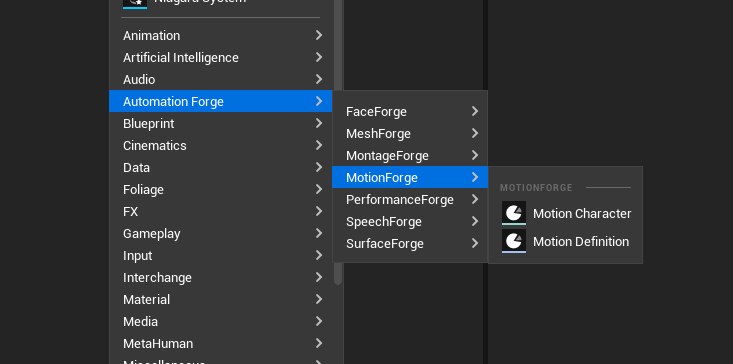
Every set has its own branch of that same menu, so the whole family's authoring surface is one place rather than seven.
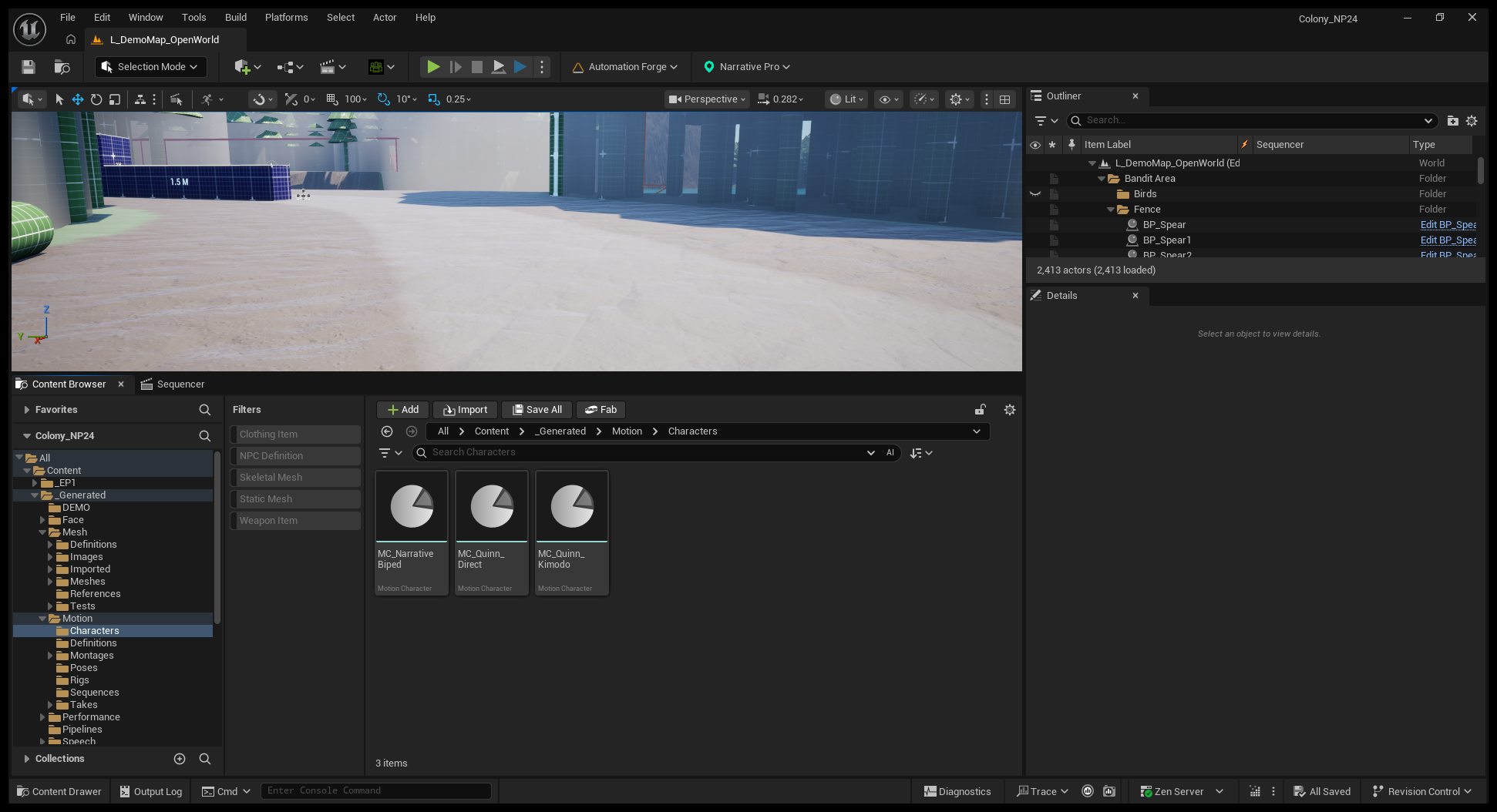
They live under _Generated/Motion, subdivided by kind: Characters,
Definitions, Takes, and the Rigs, Poses and Sequences a provider
needs along the way. Nothing MotionForge writes lands outside that tree.
Motion Character
A Motion Character pairs a skeletal mesh with what each provider needs to reach it.
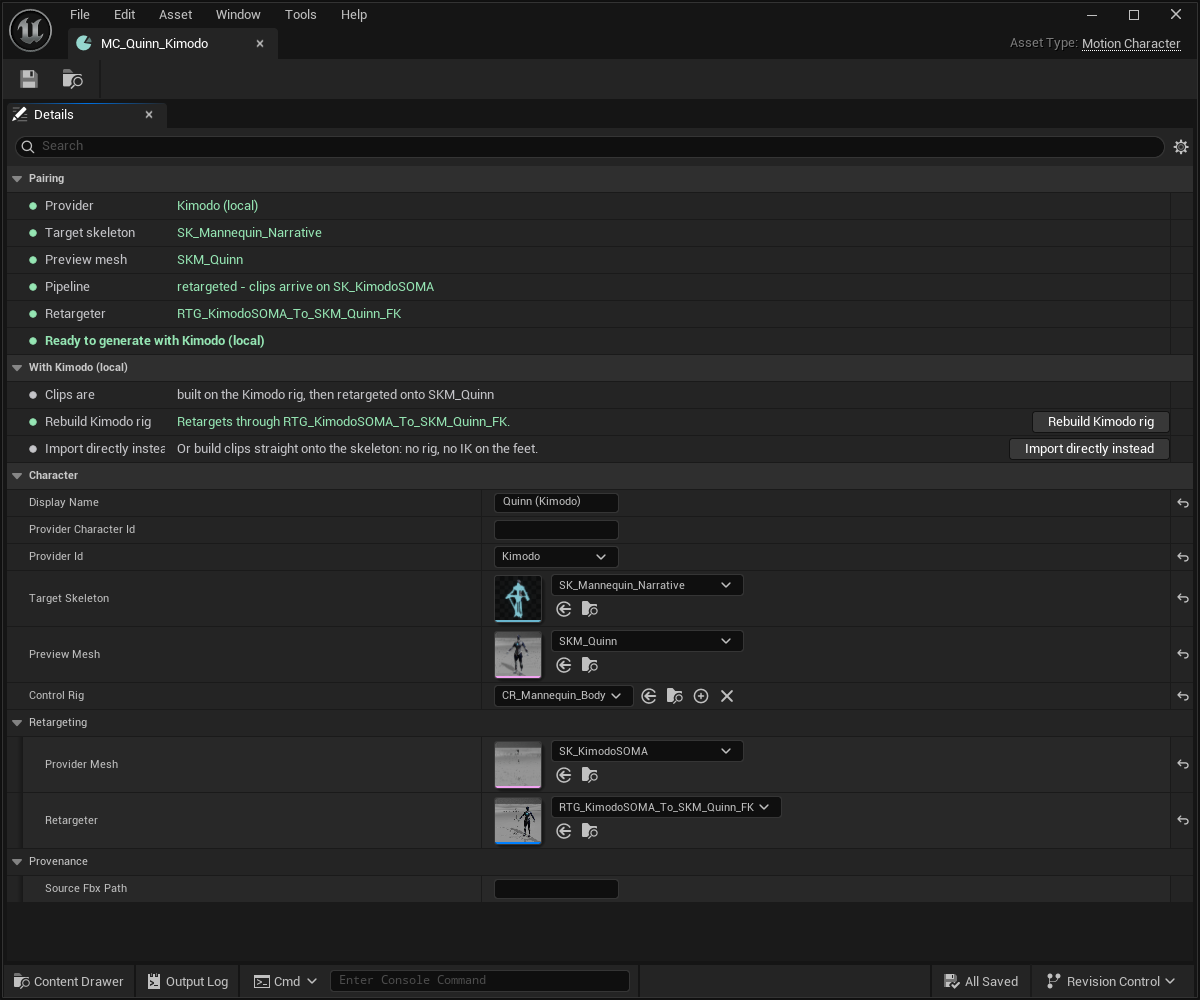
CreateCharacterFromMeshmakes one from a mesh you already have.- Suitability is per provider. A character prepared for one provider never suits another, and the window says so rather than failing at generation time.
ProviderMeshdecides the import route. Empty means direct; set means the clip arrives on a provider rig and needs a retargeter. See retargeting.
The character window shows the facts first, then — per provider — whether the character suits it, the route its clips take, and that provider's own actions. Including the case that matters most: when clips would stop on a provider rig for want of a retargeter.
Motion Definition
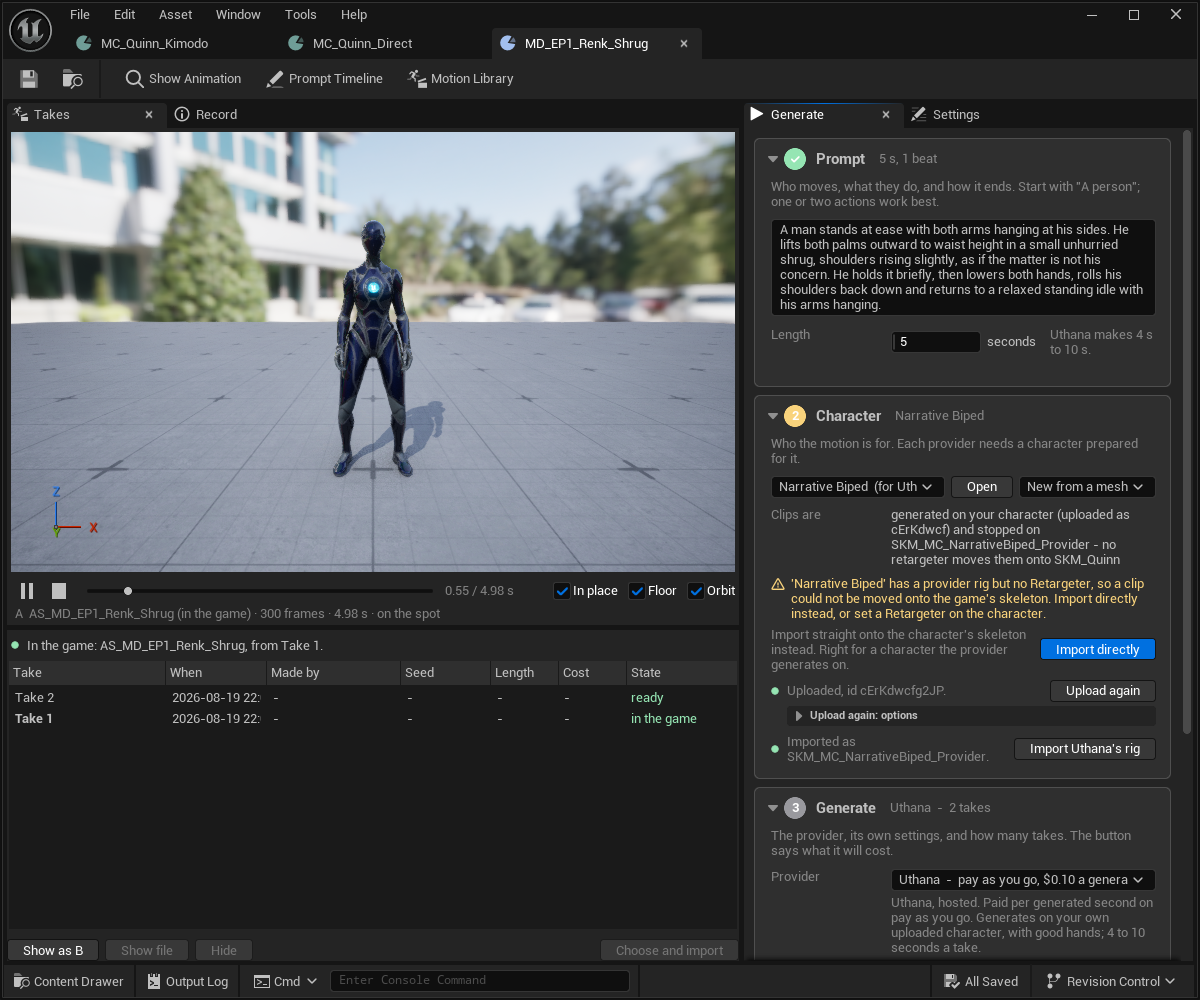
The recipe. A primary data asset holding the prompt, the character, the provider, and that provider's settings.
A definition is authored, committed and re-runnable. It is not a record of a run — the takes are.
Its window is two halves: the Takes stage on the left, where you watch results, and Generate on the right, where you set up the next one.
Each provider brings its own settings
The settings for a generation do not live on the definition. They live on a per-provider pipeline object the definition holds one of, per provider it has used.
That means switching Kimodo → Uthana → Kimodo restores Kimodo's settings rather than resetting them. The model id and the sampler fields — seed, steps, guidance, post-processing, beat splitting — belong to the provider, under the provider's own names, as that vendor's documentation spells them.
This is don't abstract the vendor away made concrete. A neutral "quality" slider that meant something different per provider would be worse than either vendor's own control.
Switching a definition's provider keeps the old character. A definition that has been pointed at a new provider still carries the previous provider's character until you change it — and the generation will either refuse or produce something on the wrong rig. Check the character when you change the provider.
Older definitions migrate in memory on load; MigrateDefinitions resaves them
so the migration is on disk rather than re-done every session.
Takes
A take is one generated result.
- Numbered across generations, not within one — take 7 is always take 7.
- Hidden, never deleted (
HideTake). - Marked as an older recipe when the poses that produced them change, so a take generated before you edited the constraints is visibly not comparable.
ChooseAndImportpicks one and imports it in a single step.GetClipUsersnames the montages and sequences using the current clip before it is replaced.
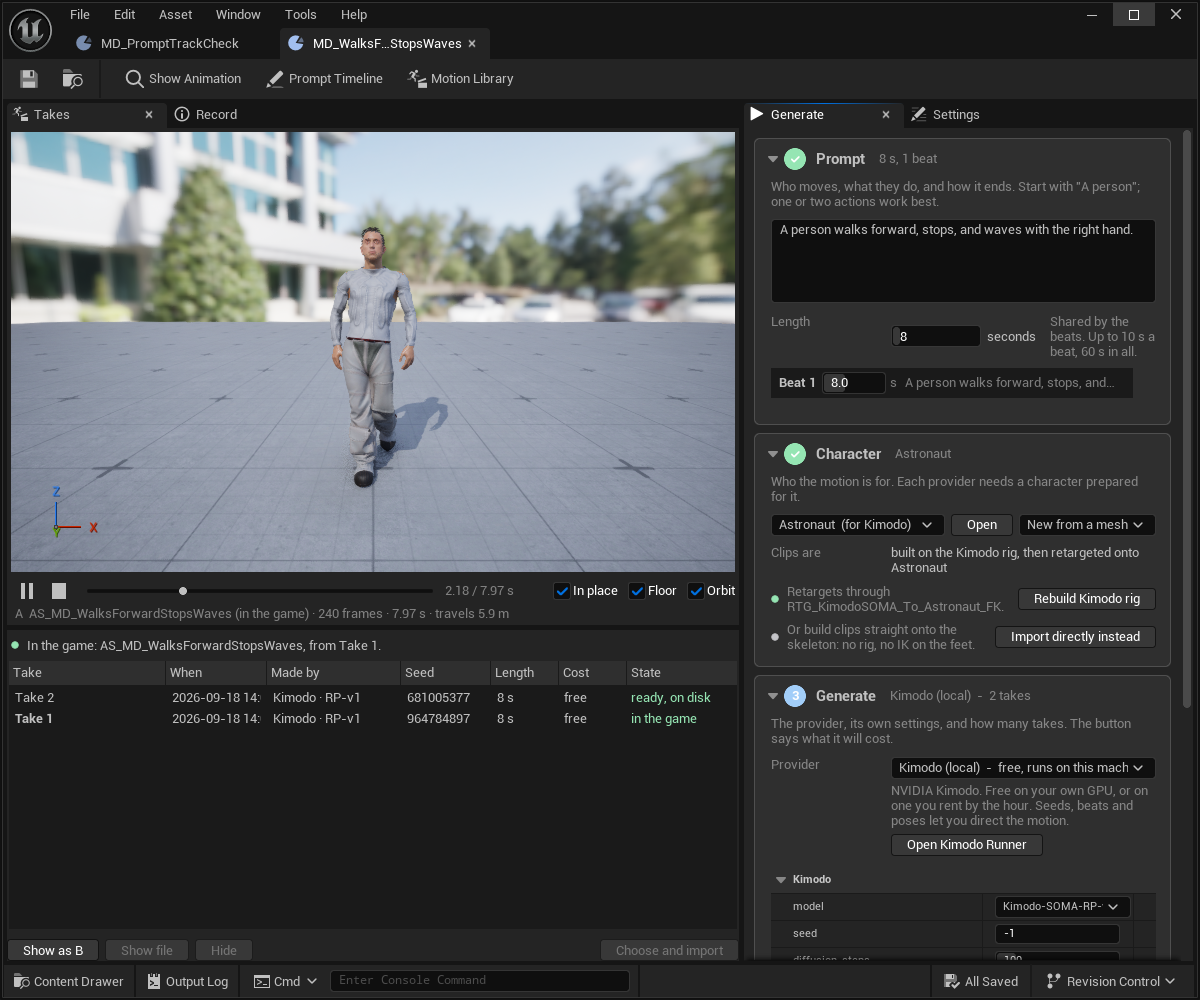
Preview before you choose
PreviewTake builds a take into a transient, never-saved clip — fetched
only where fetching is free — by exactly the route its import would take:
built on the provider rig and retargeted in memory when the character has a
retargeter.
That last clause is the point. A preview that skipped the retarget would look fine and import wrong.
Previews are cached per take.
Beats
A prompt can describe more than one motion. A full stop divides a prompt into beats.
Each beat becomes its own segment of the generated clip. Providers declare their own limits — one local provider caps a beat at 10 seconds and a whole clip at 60.
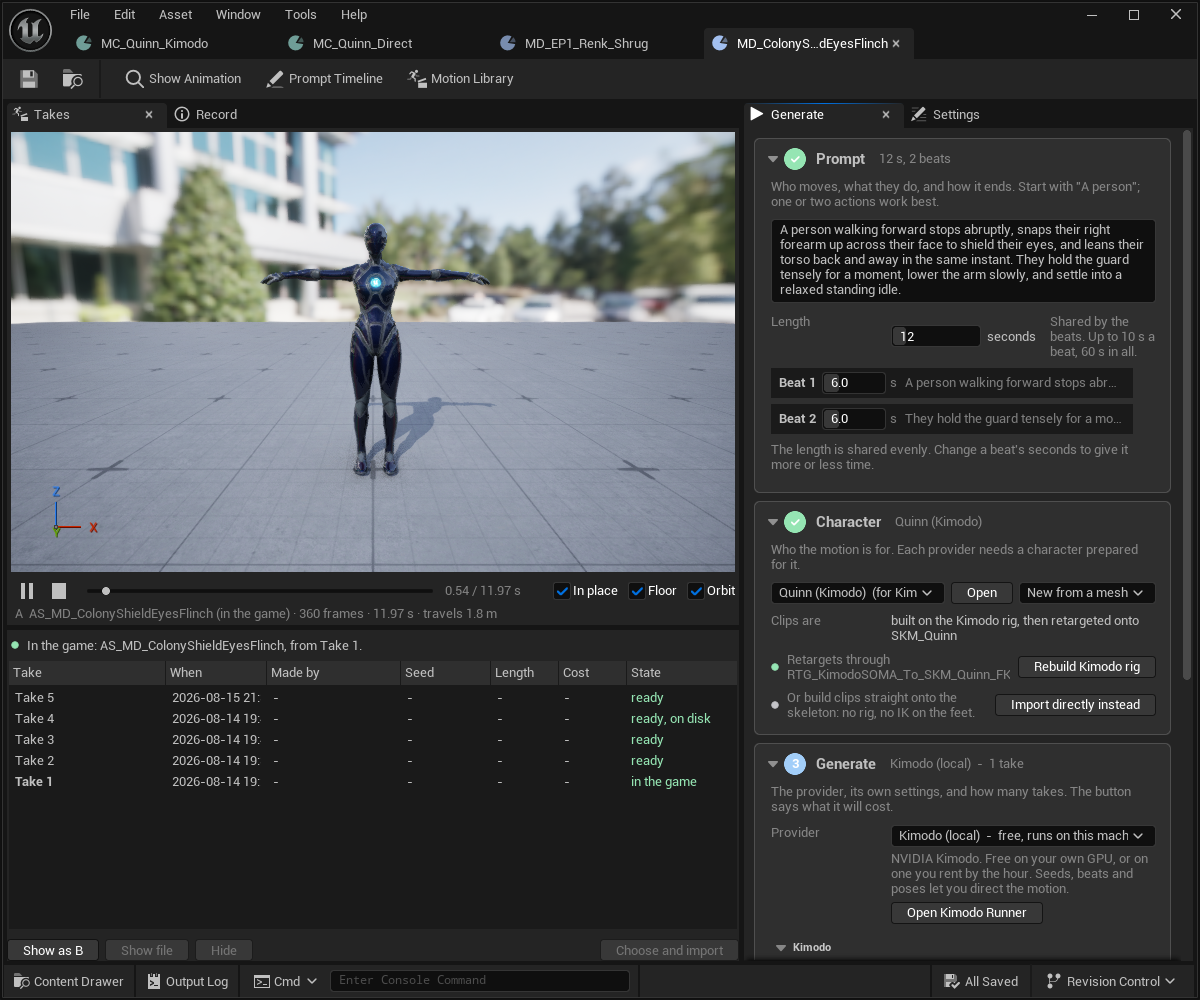
Compare the same panel on Uthana: one beat, "4 s to 10 s", and a price per generated second, where this one reads "Up to 10 s a beat, 60 s in all" and "free, runs on this machine". The limits and the price are the provider's own, shown where the decision is made rather than in a table you have to go and find.
The full-stop rule has an obvious trap, and it is handled: a decimal point inside a number is detected before submission rather than silently splitting "1.5 metres" into two beats.
Jobs
Generation is asynchronous and nothing blocks.
- Cancel leaves definitions in review if any take finished, or failed with the reason. It does not wedge them.
- A job past its timeout is marked late and polled less often — not dropped. A slow provider is not a lost generation.
GetActivitiesis the job strip: what is running per definition, including a runner being started.GetSetupStepsreturns each provider's own measured setup rows — measured, not assumed. See providers.
Where things are
| Surface | Where |
|---|---|
| The tab | Tools ▸ MotionForge, under the menu's Automation Forge heading |
| New assets | Content Browser ▸ right-click ▸ Automation Forge ▸ MotionForge |
| Project settings | Project Settings ▸ Automation Forge ▸ MotionForge — provider defaults, output, import, retargeting |
| Keys | Editor Preferences ▸ Automation Forge ▸ MotionForge, or the family Keys page |
Seven console commands: MotionForge.GetStarted, MotionForge.Library,
MotionForge.TestConnection, MotionForge.CredentialStatus,
MotionForge.ClearKey, MotionForge.UploadCharacter,
MotionForge.ListCharacters.
The tab opens on Get started until the project has a motion to show. After that it opens on the library.
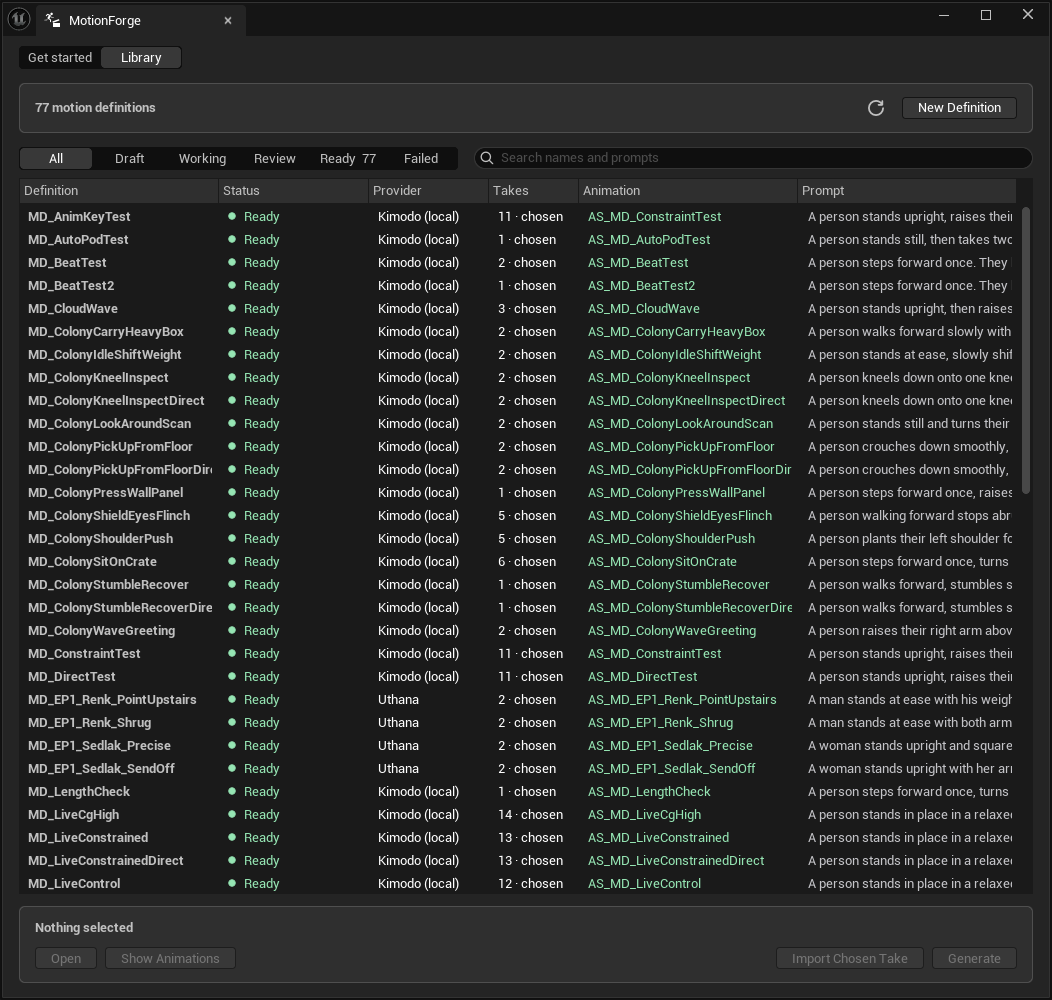
Worth noticing in that list: take counts of 11, 13 and 14 sit beside counts of 1. Nothing was tidied away — takes are hidden, never deleted, so a definition that was hard to get right still carries the evidence of it.